 iqanywhere
01 / GUIDE
Install the right app
Use Control on the computer you help from. Use Share on the computer you want to control. You can install both apps on the same computer.
- Go to the downloads on iqanywhere.com and choose Control or Share for your computer.
- Windows: open the installer and follow the steps. Share may ask for permission to install its background components.
- Mac: open the DMG and drag the app to Applications. Start Share and follow the instructions for screen recording and accessibility. These permissions allow it to share the screen and accept input.
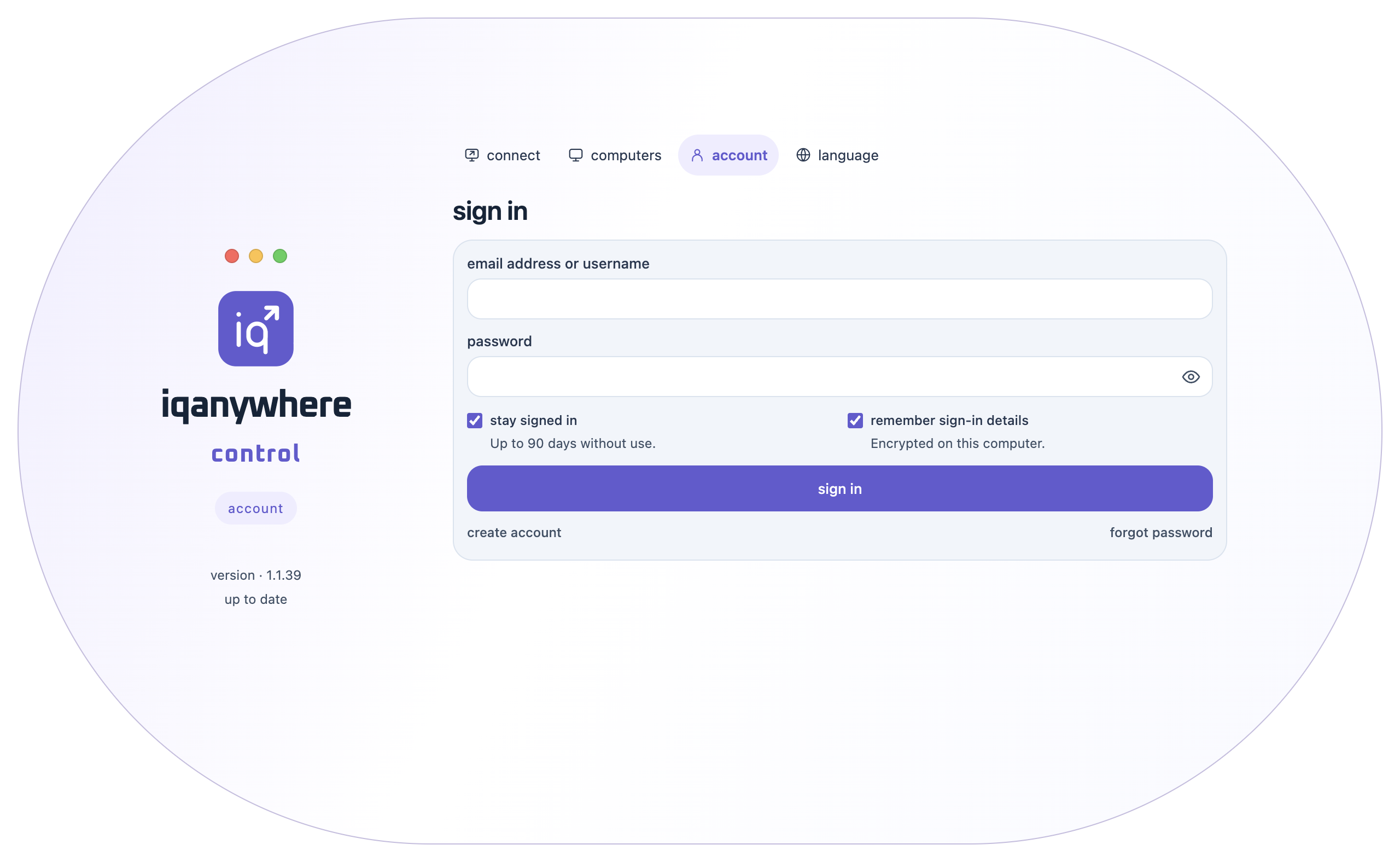
- In Control, open account. Select create account, confirm your email address using the email you receive, and sign in. Start the trial if that button appears. You do not need an account just to receive help with Share.
02 / GUIDE
Share your computer
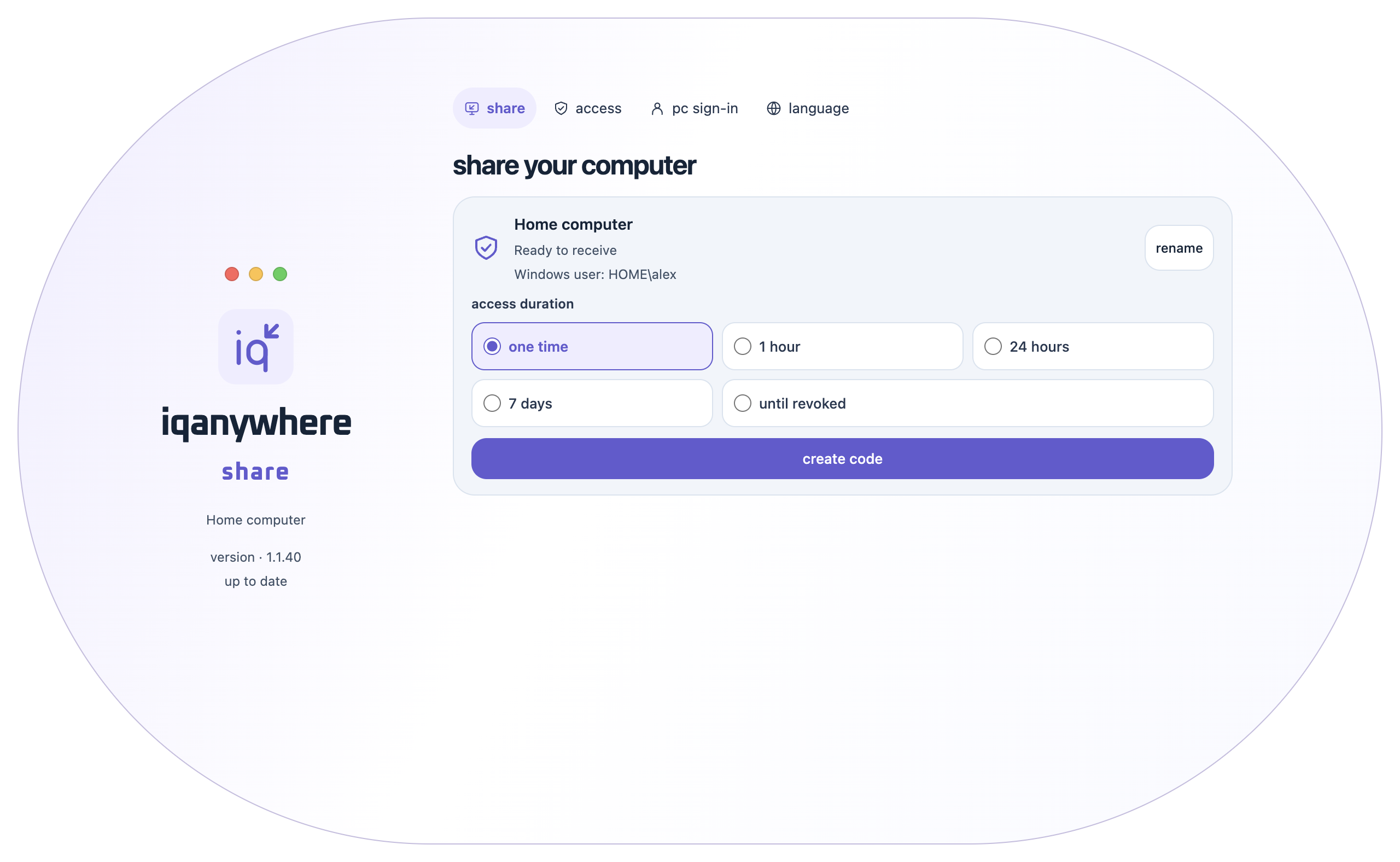
Follow these steps on the computer you want to make available. In the example it is called Home computer.
- Open Share and check that Ready to receive is shown. If a setup button appears, finish setting up Share first.
- Choose the access duration: one time, 1 hour, 24 hours, 7 days or until revoked.
- Click create code. Then use copy code or copy link and give the code or link to the person who may help.
- If Share asks for permission when the helper connects, allow the connection only if you expect it.
03 / GUIDE
Connect with Control
The helper follows these steps in Control. Share must be ready on the other computer.
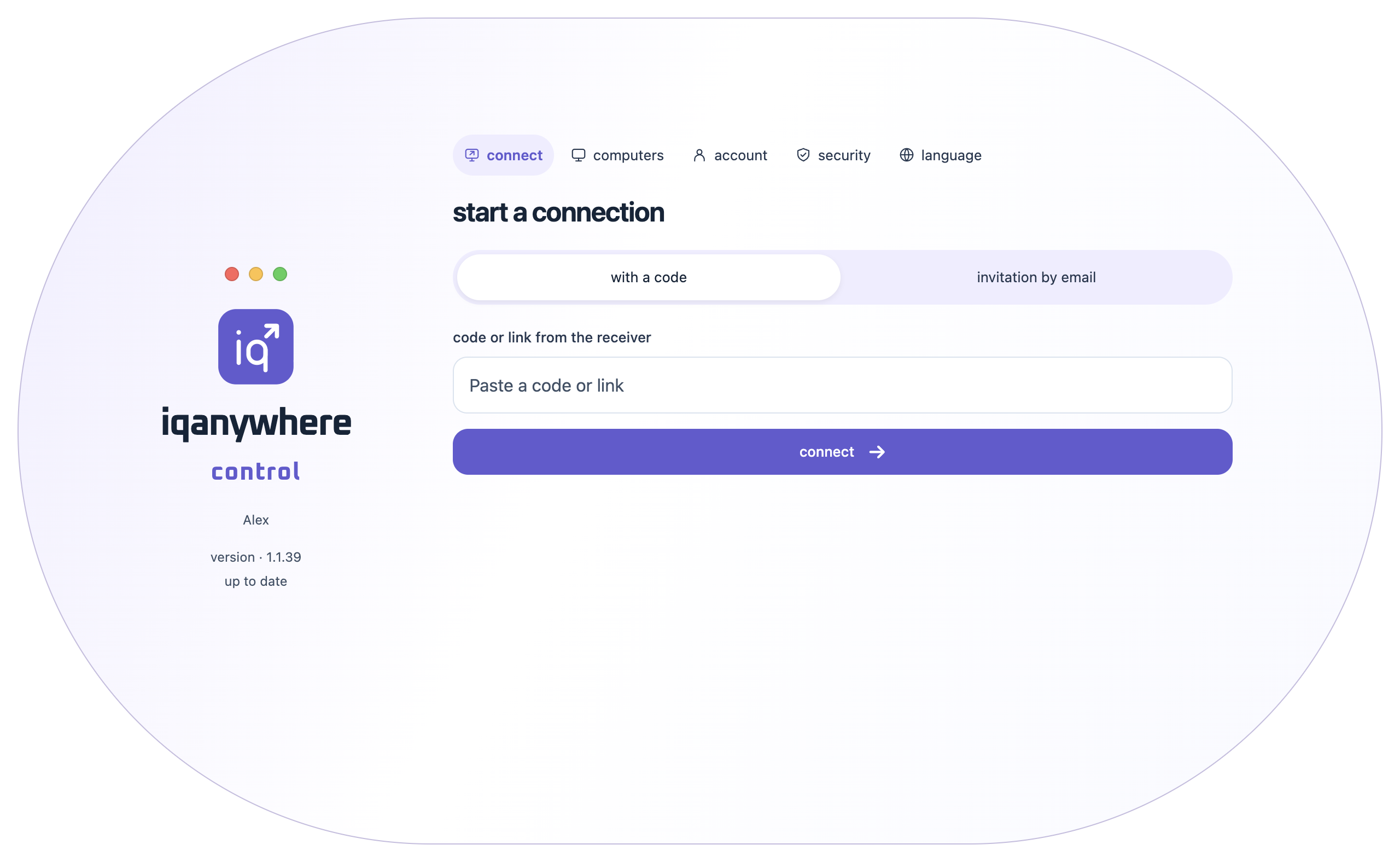
- Open connect and choose with a code.
- Paste the received code or link into code or link from the receiver.
- Click connect. If necessary, wait for the receiver to allow the connection. The remote desktop will then open.
- If you have an annual licence and want to invite someone, select invitation by email, enter the email address and send the invitation. The receiver follows the instructions in that email.
04 / GUIDE
Saved and multiple computers
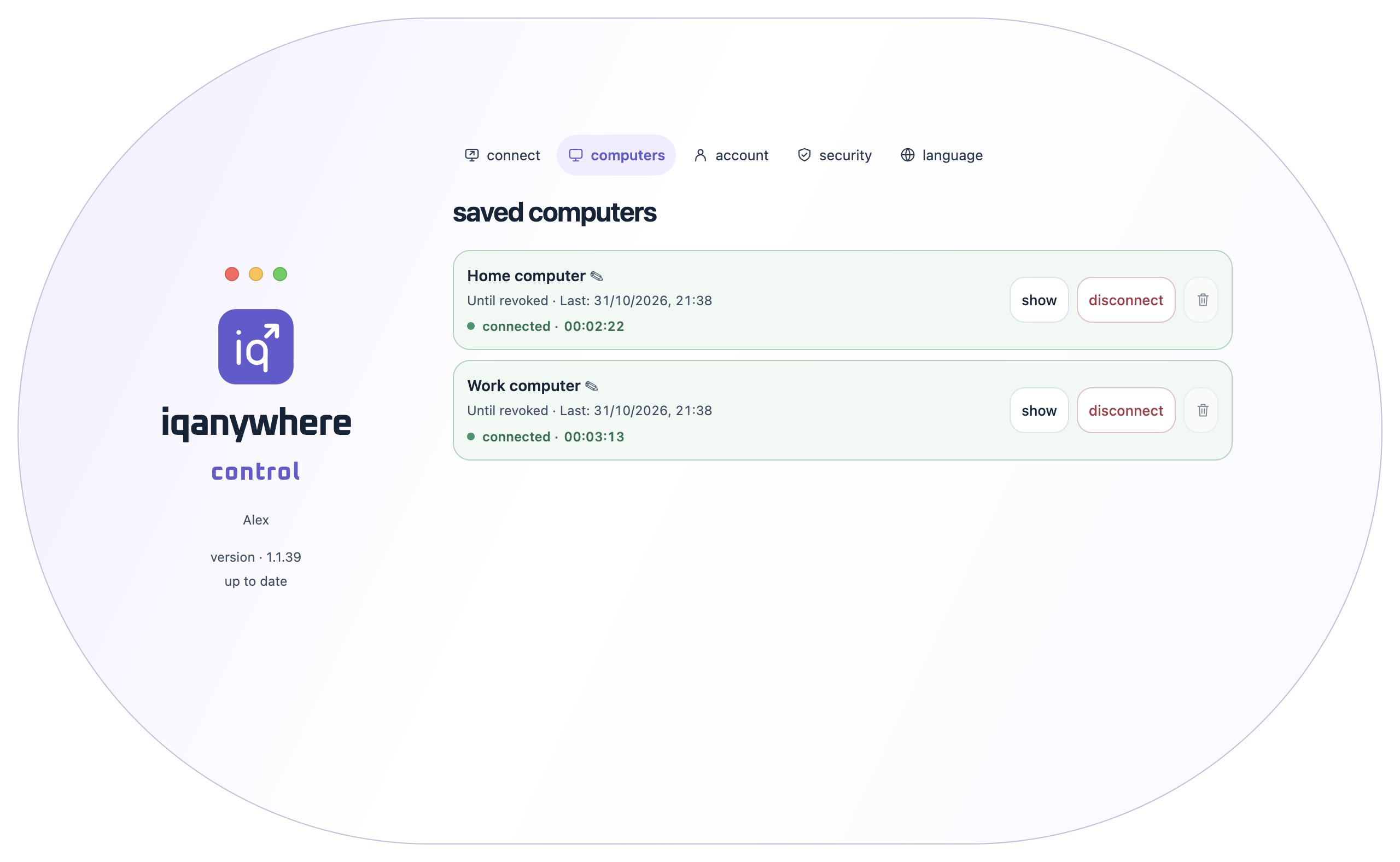
Open computers in Control to find your saved computers. This list belongs to your Control account.
- Click connect next to the computer. For access that remains saved, the receiver chooses until revoked in Share before creating the code.
- Open a second computer from the same list. Each connection has its own window, so you can use both side by side.
- Use show for a computer that is already open to bring its existing window to the front.
- disconnect closes only that connection. Click a computer’s name to rename it in your list. The bin removes a computer from your account list after confirmation.
05 / GUIDE
Picture, full screen and resolution
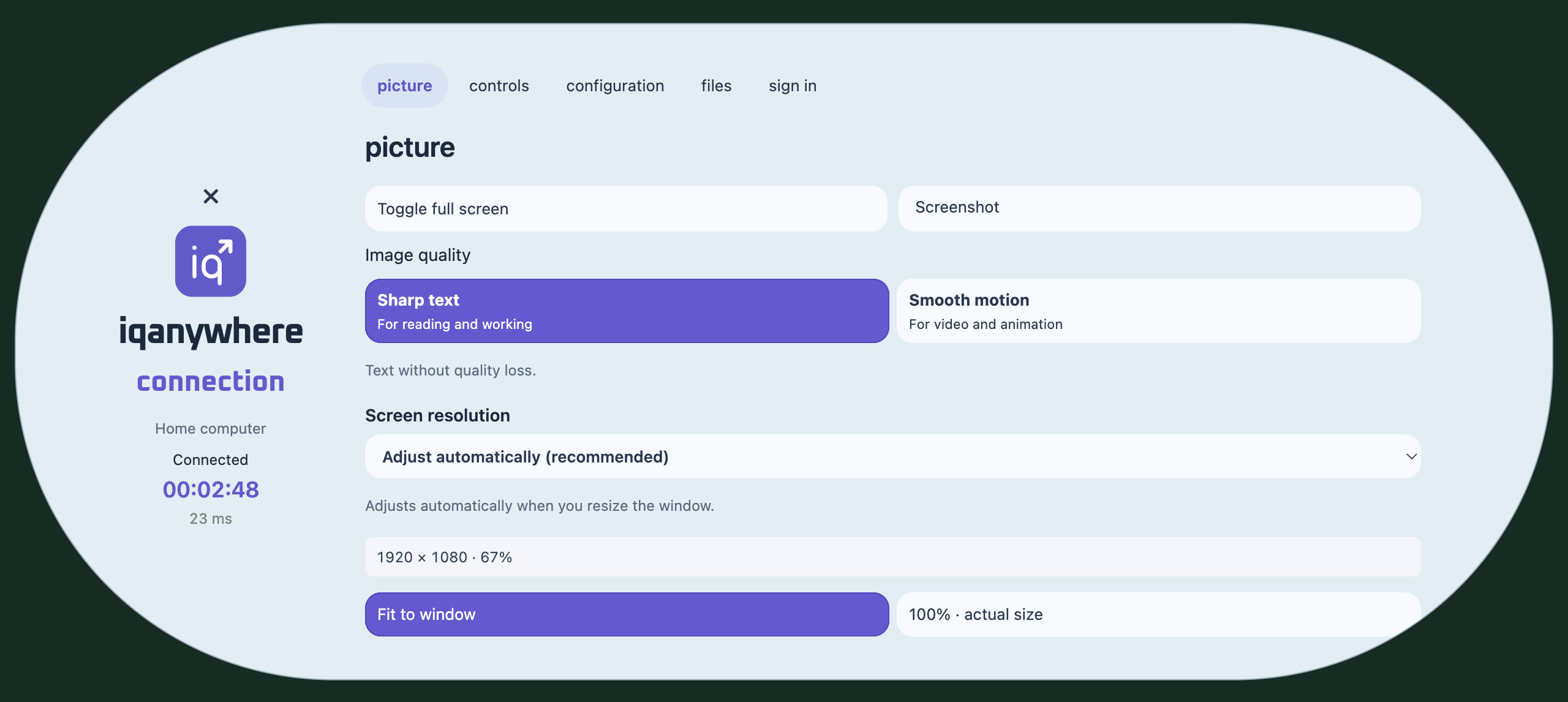
Open Menu in a connection window and select picture. These settings are a good starting point for reading and everyday work.
- Choose Sharp text for documents and text. Use Smooth motion when movement matters more, such as for video.
- Leave Screen resolution on Adjust automatically (recommended). You do not need to choose from the full list of resolutions.
- Choose Fit to window to see the entire desktop in the window. 100% · actual size shows its actual size; a large desktop may then extend beyond the window.
- Use Toggle full screen to enter or leave full screen. For a fixed resolution, choose a ratio that fits your window: for example, 1920 × 1080 for 16:9 or 1920 × 1200 for 16:10.
06 / GUIDE
Clipboard, files and folders
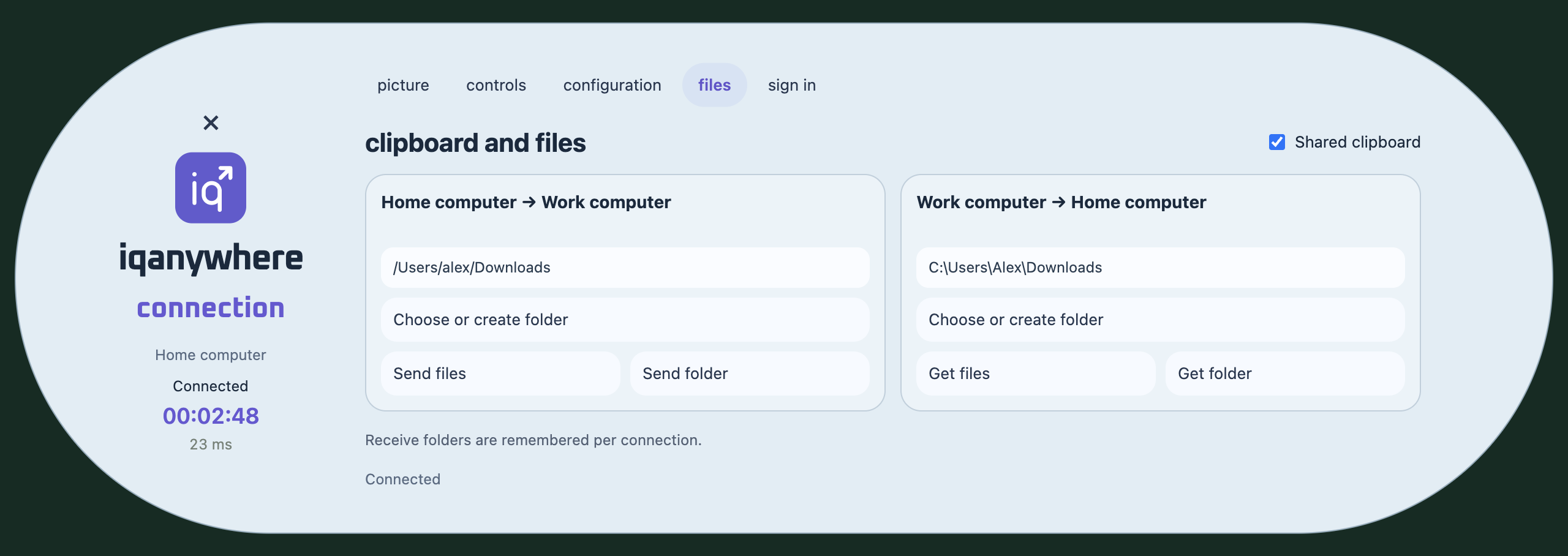
During a connection, open Menu → files. First check the computer names and arrow above each column: they show the transfer direction.
- Check the receive folder in the appropriate column. Use Choose or create folder to choose another folder or create a new folder on the receiving computer.
- Choose the files button for individual files, or the folder button for a whole folder. Send files / Send folder and Get files / Get folder belong to the direction shown above them.
- Wait for confirmation that the transfer is complete. Files go directly into the receive folder shown. The folder choice is remembered for each connection.
- Enable Shared clipboard to copy and paste text. Use the normal copy and paste shortcuts for the relevant computer. With multiple connections, the clipboard follows the Control window you are working in.
07 / GUIDE
Manage access and permission
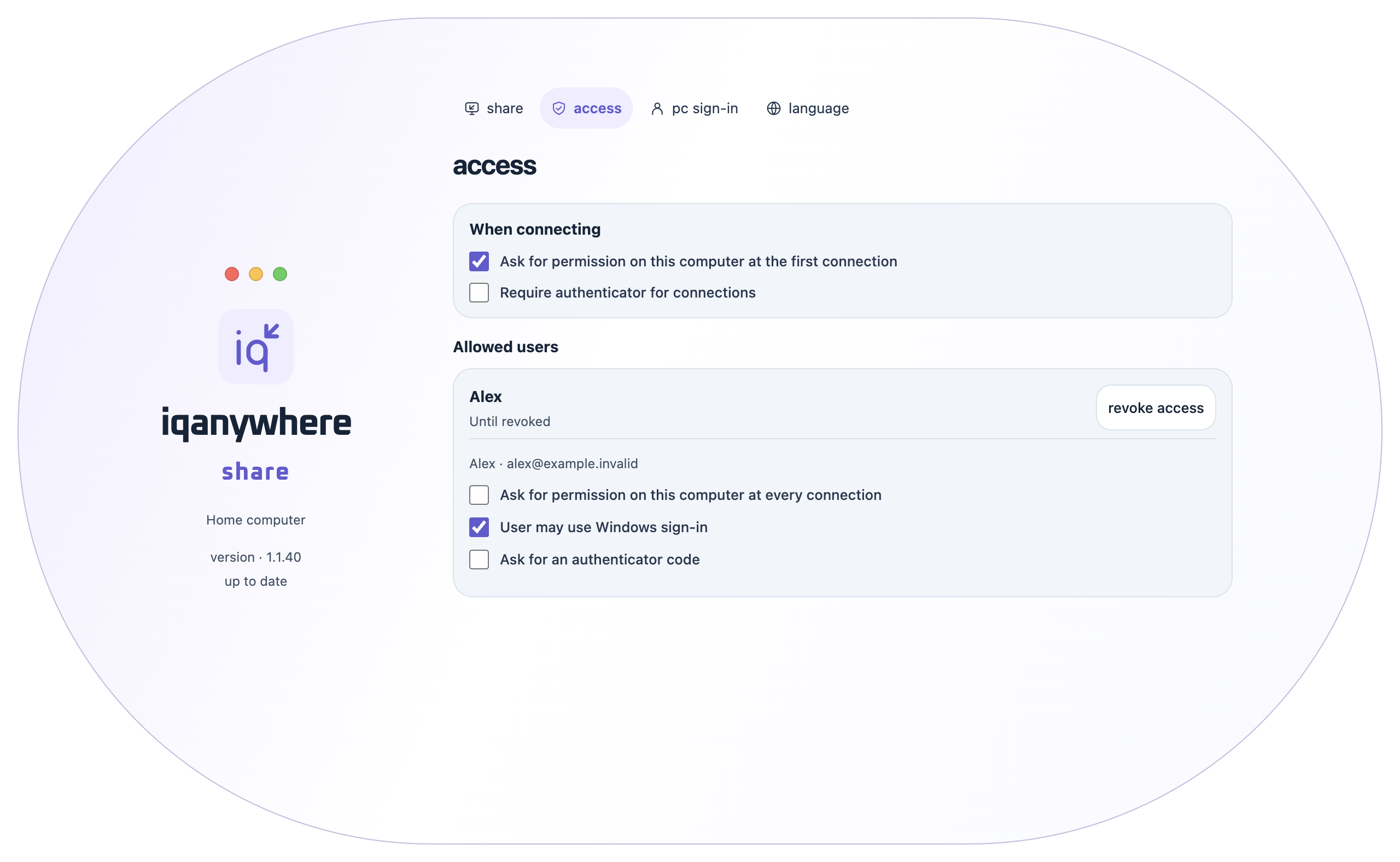
The owner of the shared computer controls access in Share → access. Checkbox changes are saved immediately.
- Ask for permission on this computer at the first connection: ask for permission on this computer at the first connection. Under Allowed users you can also require permission at every connection for each user.
- Require authenticator for connections: require an authenticator for connections. This is a general connection rule, separate from each user’s Windows sign-in choices.
- Under Allowed users, check who has access and for how long. Use revoke access to revoke that user’s access.
- To end an active connection, use the stop control for the shared session. In Control, Disconnect closes that connection. The cross above the logo in the connection menu closes only the menu.
08 / GUIDE
Set up Windows sign-in
This is optional. Sharing a desktop that is already signed in also works without a saved Windows password.
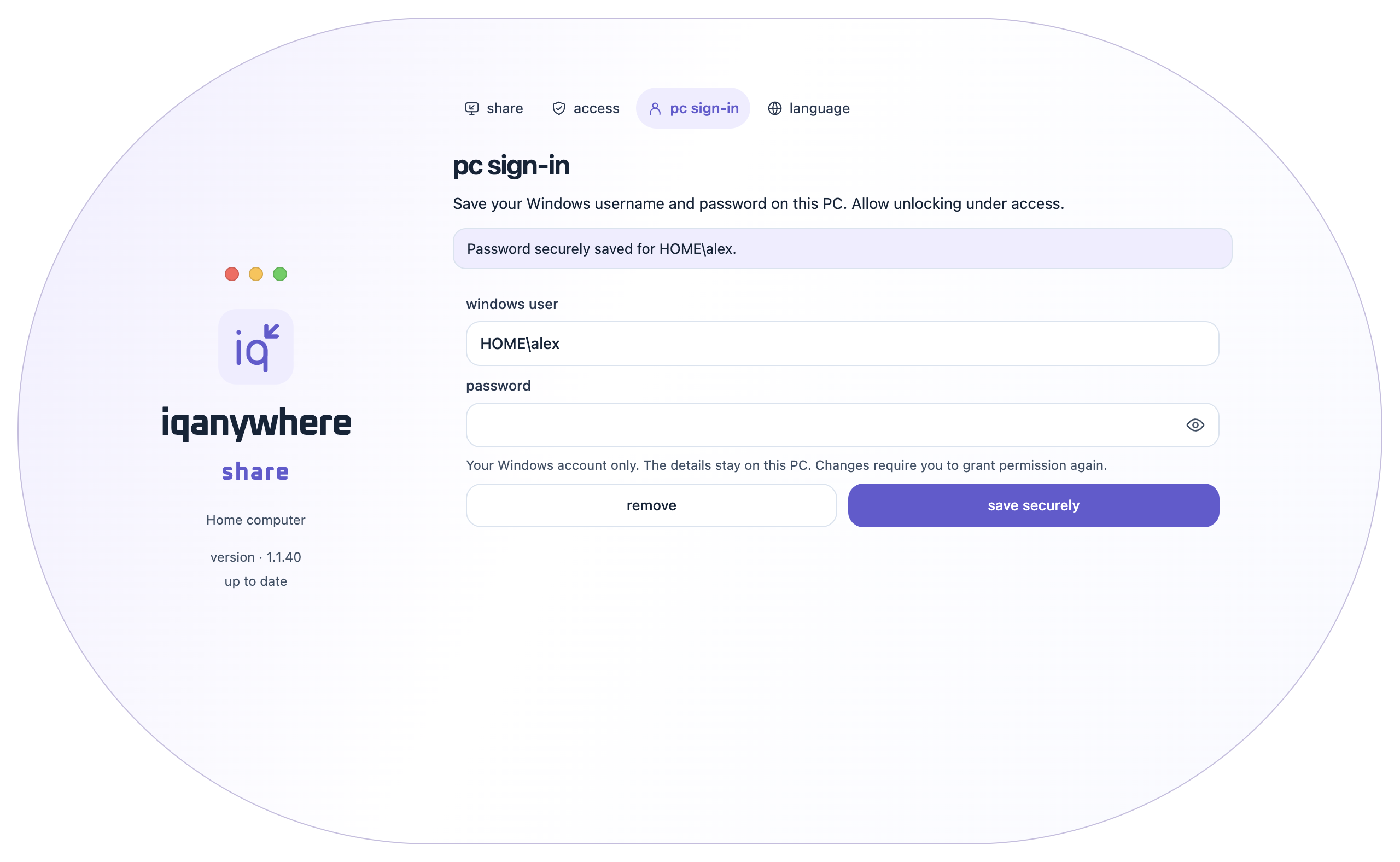
- On the Windows computer, open Share → PC sign-in. Enter the correct Windows username and password and save them. The eye button lets you check the entry temporarily.
- Open access. Enable User may use Windows sign-in for the correct allowed user. If the user is missing or the options are grey, have the helper connect once through Control using the Share code.
- Ask for an authenticator code determines whether a fresh code is requested when unlocking. Older versions also use the word extra in this label.
- Automatic Windows sign-in also requires an active authenticator on the Control account. This still applies when the checkbox for asking for a new code is off. Set up the authenticator in Control → security.
09 / GUIDE
Choose a language and update
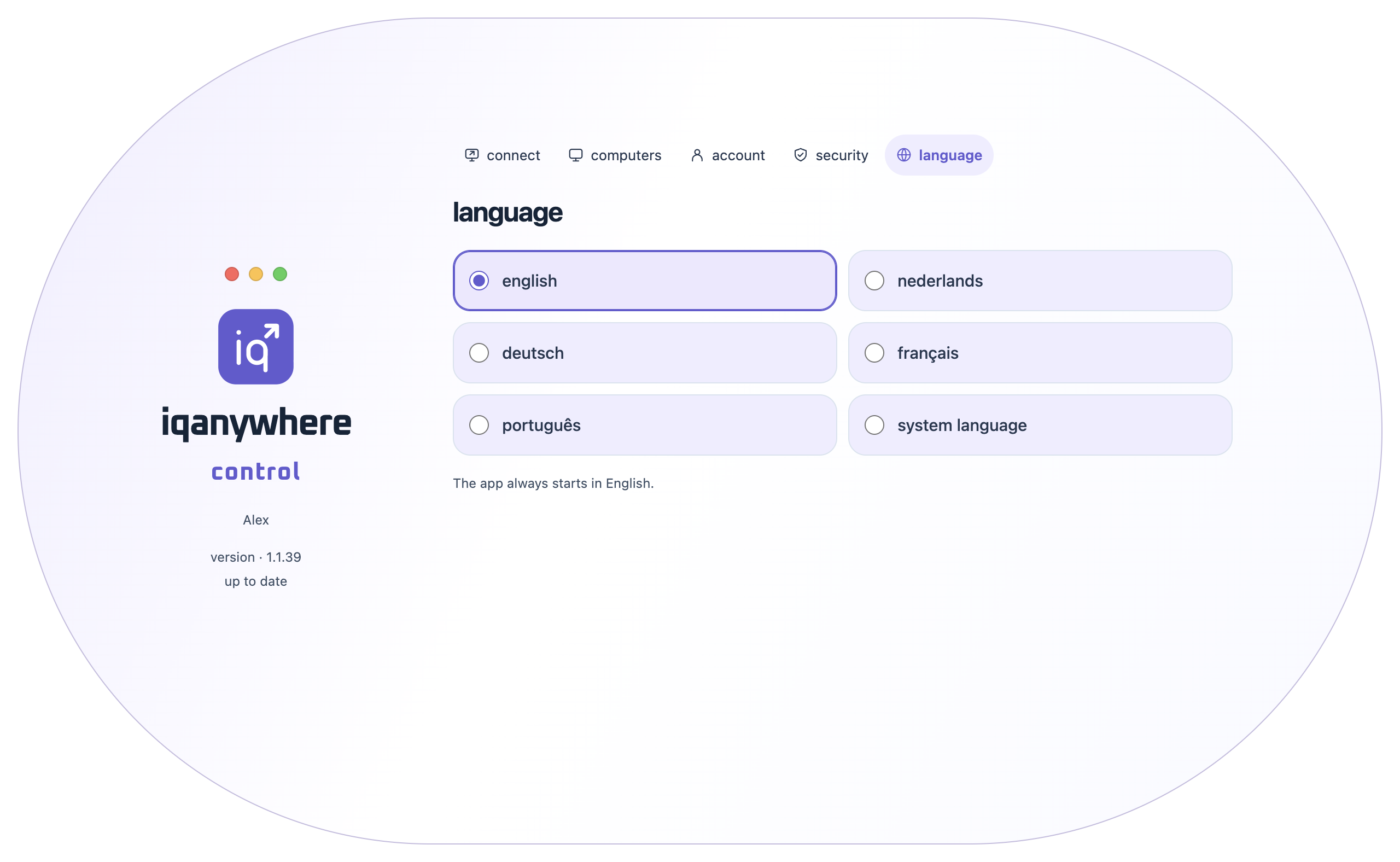
Control and Share have their own language tab with directly clickable language choices.
- Open Language and choose English, Nederlands, Deutsch, Français or Português. System language follows the system language during the current app session.
- After a full restart, both apps begin in English again. Choose another language again in the language tab.
- The version and update button are below the logo. When an update is available, click that button to install the new version and restart the app.
- Update both Control and Share if a new feature is missing. Normal updates preserve your saved computers, account and access settings.
10 / GUIDE
Secure your Control account
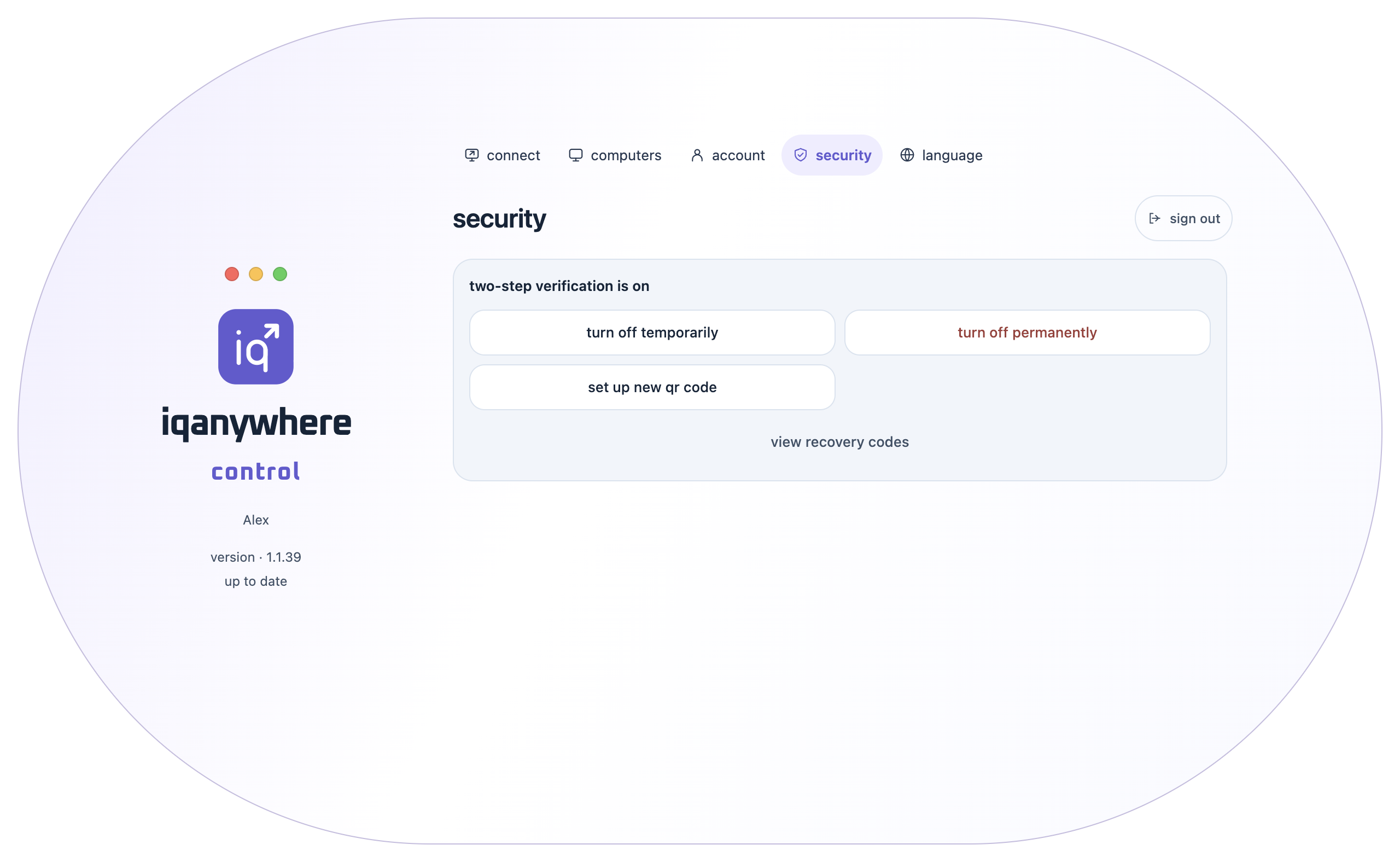
When signed in, open security in Control. Your account authenticator is separate from permission checkboxes on the shared computer.
- Choose set up two-step verification if the authenticator has not been set up. Scan the QR code with your authenticator app and confirm with the current code.
- Keep recovery codes somewhere safe outside iqanywhere, such as in your password manager. Each recovery code works once.
- turn off temporarily preserves the existing setup. turn off permanently removes the authenticator and recovery codes after confirmation. Both affect automatic Windows unlocking.
- If a Windows sign-in message says two-step verification is missing, check this account setting even if Ask for an authenticator code in Share is off.
11 / GUIDE
If something goes wrong
Start with the message in the connection window. This helps you avoid changing an unrelated setting.
- No connection: check that the other computer is on, connected to the internet, and ready in Share. Check the code and access duration. Also check your Control sign-in and trial or licence.
- Windows sign-in screen: the connection works, but Windows is locked or not signed in. Use normal Windows sign-in or the saved sign-in route you set up earlier. A connected computer card alone does not prove Windows is unlocked.
- Missing option or grey checkbox: check you are in the right app. Windows sign-in permissions are in Share → access under the relevant user. If necessary, have that user connect once with Control first.
- Picture too small or distorted: start with Menu → picture → Adjust automatically (recommended) and Fit to window. For example, 1920 × 1440 has a different aspect ratio from 1920 × 1080.
- Files or pasting do not work: check Share is running, both apps are up to date, and Shared clipboard is enabled. Check the receive folder and wait for any current transfer to finish.
- Need help: email support@iqsoftware.nl with the Control and Share versions and the exact message. Send a screenshot without passwords, access codes, QR codes or recovery codes.